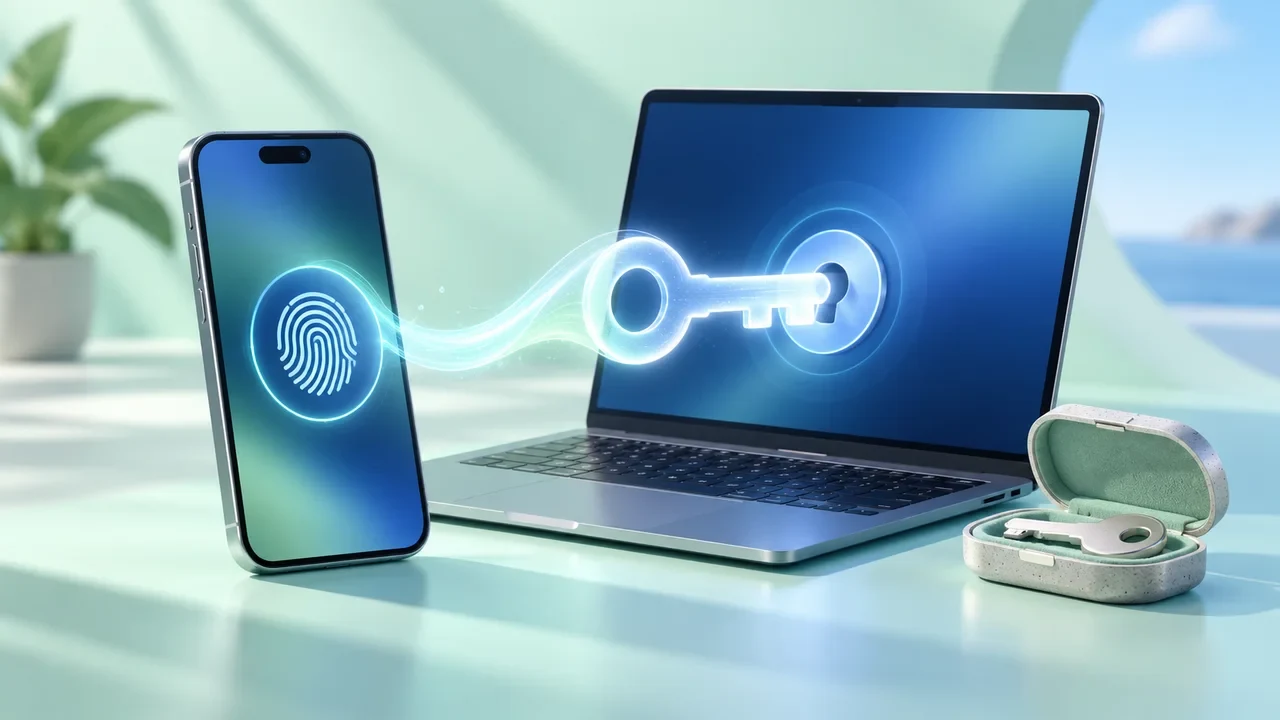
Illustrative editorial image generated with AI.
A passkey can replace the familiar password box with a device-unlock step. The part worth planning is what happens after the easy first sign-in: a lost phone, a different computer, or a move to another password manager. Set up the new credential and the route back into the account together.
Know what you are creating
A passkey uses a cryptographic credential associated with a particular service. Your face, fingerprint or device PIN authorizes its use; it is not simply a password made from your fingerprint. Google’s account guide, for example, says biometric information stays on the device and explains that adding a passkey does not remove existing account recovery factors.
That last detail matters. “I enabled passkeys” does not tell you whether an old password, recovery email or other sign-in route remains active. Inspect the account’s security page and keep the remaining routes under your control. Product settings and workplace requirements can differ.
Write down the provider, not the secret
The FIDO Alliance’s passkey guidance distinguishes credentials that sync through a provider from those tied to an individual authenticator. A synced passkey may become available on another device signed into the same provider; a device-bound credential needs its own backup plan. Moving to a different ecosystem is a separate question from buying another device in the same ecosystem.
For each important account, record a small inventory: service name, where the passkey is stored, which devices you have tested, and the available recovery method. Do not put recovery codes in a shared work note. The inventory should help you find the credential, not expose a second route into the account.
Set up one account in a controlled order
- Start while signed in: confirm the recovery email and telephone details are current, and check which recovery options the service actually offers.
- Choose the storage location: read the system prompt before accepting. On a machine with several managers, the default may not be the provider you intended.
- Create the passkey: give it a recognizable label if the service supports labels.
- Test a fresh session: keep the working session open, then use another browser session or your second device to verify the expected sign-in route.
- Test the alternative: confirm that a second registered credential or the documented recovery method is accessible before retiring the old device.
A successful sign-in on the original phone proves less than it seems. It does not establish that the credential has synced, that another browser can use the chosen manager, or that you can recover the provider account.
Use a realistic replacement-phone rehearsal
Imagine your primary phone is unavailable tomorrow. Can you unlock your other trusted device? Can it access the passkey provider without needing the missing phone for every step? Can you reach the recovery mailbox? If every answer depends on the same lost device, the apparent backup is circular.
You do not need to erase a device to test this. Use an existing second device and read the provider’s recovery procedure. FIDO’s deployment guidance identifies loss of access to the provider and incompatible replacement devices as reasons recovery remains necessary even with synced passkeys.
Keep work and personal ownership clear
A passkey saved in a company-controlled account may become unavailable when that account is removed. Likewise, a personal credential on a shared machine can confuse the next user. Before creating one, check who owns the device and provider account and whether workplace policy permits that storage choice.
When leaving a device behind, remove the credential through the appropriate account and device controls after you have verified another route. A browser-profile name by itself is not a security guarantee; our browser-profile guide explains what profiles separate.
The useful outcome is simple: a sign-in method you can use today and a documented route you can still use when today’s device is gone. Recheck that arrangement when you change phone, manager or employer.